Can Kindle Read EPUB Files? The Complete 2026 Guide
The short answer is yes, Kindles can read EPUBs today. The longer answer explains why your file still might not show up, and how to fix it.
For years, the answer to "can Kindle read EPUB?" was a flat no. Amazon used its own formats (MOBI, AZW3, KFX), and EPUB, the open standard used by almost every other ebook store and reader, was locked out.
That changed in 2022, when Amazon added EPUB support to Send to Kindleand retired MOBI. But "support" does not mean what most people expect. Here is exactly how it works in 2026.
The Short Answer: Yes, Through Send to Kindle
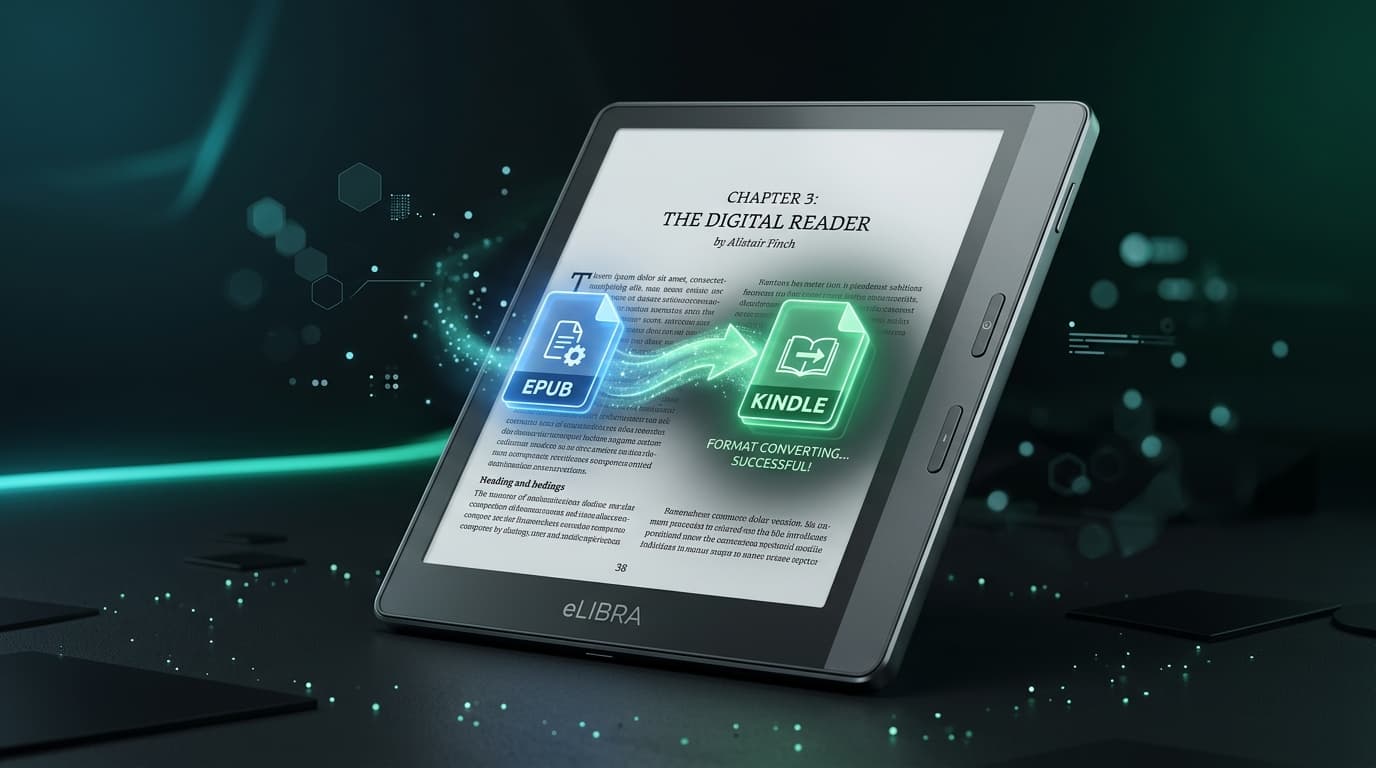
Kindle devices still do not open raw .epubfiles. What they do is accept EPUBs through Amazon's cloud. When you send an EPUB via the Send to Kindle app, website, or email, Amazon converts it to a Kindle-native format behind the scenes and delivers it to your library.
The result is that the book appears on every Kindle device and Kindle app tied to your account, with your highlights, notes, and reading position synced. In practice, it feels like native support.
Every Way to Get an EPUB Onto a Kindle
| Method | EPUB accepted? | Size limit | Best for |
|---|---|---|---|
| Send to Kindle app (iOS/Android) | Yes | 200 MB | Sending from your phone |
| Send to Kindle website | Yes | 200 MB | Drag and drop from a computer |
| Email to @kindle.com | Yes | ~25 MB (email cap) | Quick sends of small books |
| USB cable (raw EPUB) | No | N/A | Does not work without conversion |
| USB + Calibre conversion | As AZW3/KFX | No limit | Power users with a computer |
How to Send an EPUB to Kindle From Your iPhone
This is the fastest route if your books live in the Files app, iCloud Drive, or your downloads.
- 1Install the Send to Kindle app
It is free on the App Store. Sign in with the same Amazon account as your Kindle.
- 2Find your EPUB in Files
Open the Files app, long-press the EPUB, and tap Share.
- 3Choose Send to Kindle
Pick the app from the share sheet, confirm the title and author, and tap Send.
- 4Wait for delivery
Small books arrive in under a minute. Large, image-heavy books take longer, and very large ones may fail.
Why Your EPUB Won't Show Up on Kindle
1. The file is too big
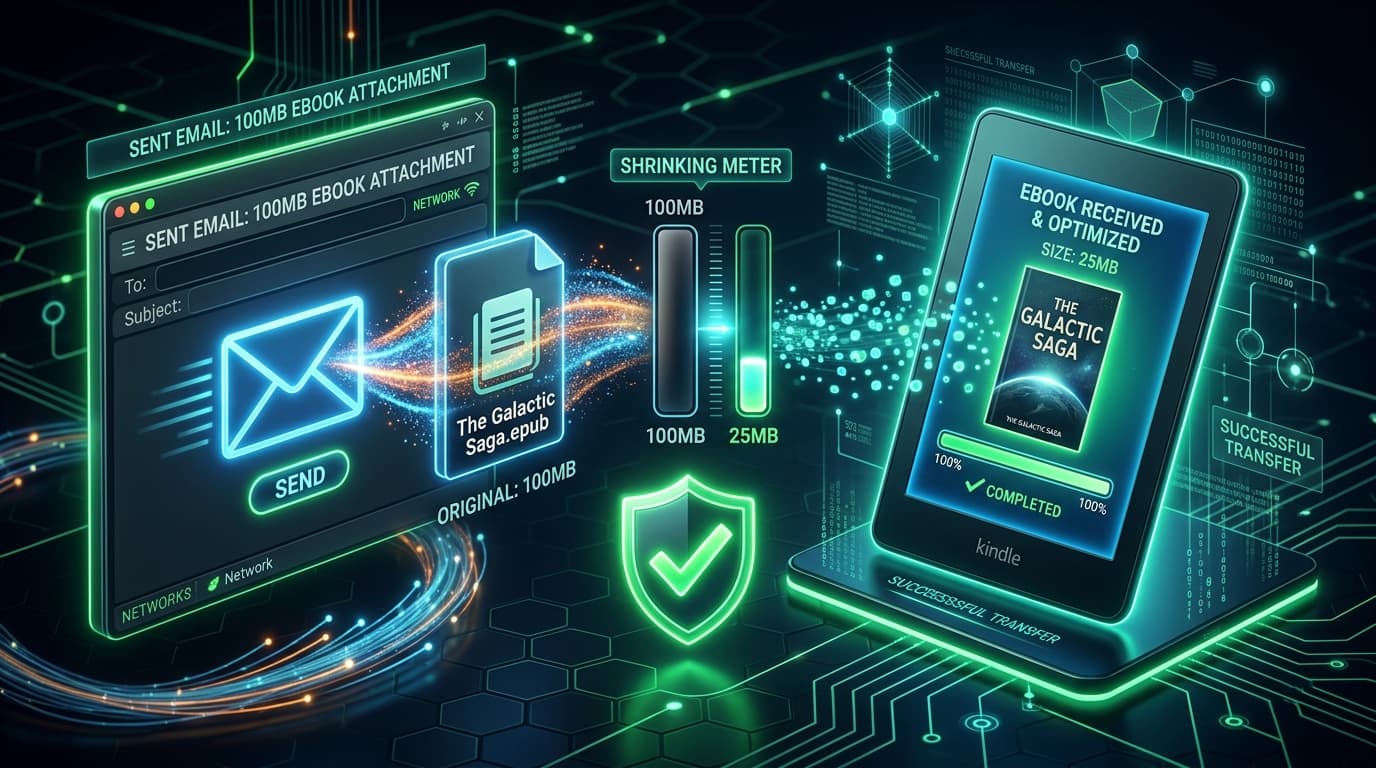
This is the most common problem. Comics, manga, cookbooks, textbooks, and illustrated guides routinely exceed 25 MB, which breaks email delivery, and some go past 200 MB, which breaks the app as well. Even under the cap, huge files are slow to convert and sometimes silently fail.
2. The EPUB has DRM
Books bought from Kobo, Google Play Books, or borrowed through Adobe Digital Editions are often locked with Adobe DRM. Amazon will reject them. Only DRM-free EPUBs, such as those from Project Gutenberg, Standard Ebooks, Humble Bundle, or many indie authors, will convert.
3. The EPUB is malformed
Amazon's converter is strict. Broken internal links, missing metadata, or unusual fonts can trigger an "e-document failed" email. Re-exporting from the source or running the file through an EPUB validator usually helps.
4. Fixed-layout formatting
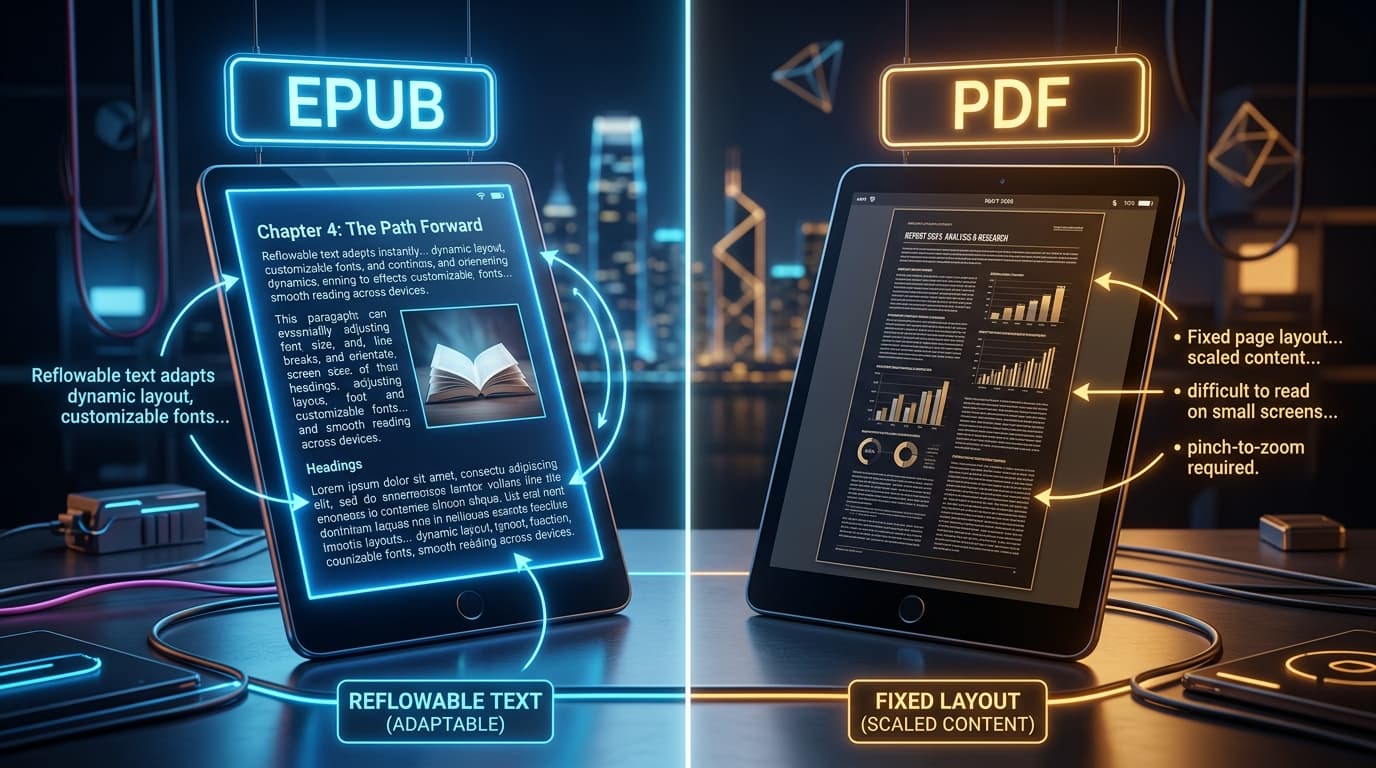
Fixed-layout EPUBs (common for children's books and comics) may convert with odd page breaks or tiny text. Reflowable EPUBs give the best results on Kindle.
Fix the Size Problem in Under a Minute
LiteBookis an iPhone and iPad app that compresses EPUB files by up to 70%, entirely on your device. It optimizes the embedded images, which make up the vast majority of a large EPUB's size, while leaving text and layout untouched.
- 1Import the EPUB into LiteBook
Tap Import, or share the file to LiteBook from Files or any app.
- 2Choose a compression level
Standard gives the biggest reduction. Lossless keeps every image pixel intact and still trims structural bloat.
- 3Compress and share
Tap compress, then share the smaller file straight to the Send to Kindle app or your Mail app.
EPUB vs AZW3 vs KFX: Does the Format Matter?
For most readers, no. Send your EPUB and let Amazon handle conversion. Converting to AZW3 yourself in Calibre only makes sense if you want to sideload over USB, avoid the cloud entirely, or keep fine-grained control over formatting. KFX offers the best typography on modern Kindles but requires plugins to create.
The Bottom Line
Kindle can read EPUB files in 2026, as long as they go through Send to Kindle, are DRM-free, and are a reasonable size. If size is what is stopping you, compress the file first with LiteBook and the rest is a single tap.
Frequently Asked Questions
- Can Kindle read EPUB files directly?
- Not natively. Kindle devices do not open raw EPUB files copied over USB. However, since 2022 Amazon's Send to Kindle service accepts EPUB files and automatically converts them into a Kindle format that appears in your library on every Kindle device and app.
- Why does my EPUB fail to send to Kindle?
- The most common causes are file size (email attachments are typically capped around 25 MB by your email provider, and Send to Kindle caps uploads at 200 MB), DRM protection from another store, or a malformed EPUB. Compressing the file with LiteBook fixes size problems in seconds.
- What is the maximum EPUB size for Send to Kindle?
- The Send to Kindle app and website accept files up to 200 MB. Emailing to your @kindle.com address is effectively limited to around 25 MB because of email provider attachment caps.
- Can I put EPUB files on Kindle with a USB cable?
- You can copy them, but the Kindle will not display them. To sideload over USB you must first convert the EPUB to AZW3 or KFX with a desktop tool like Calibre. Send to Kindle is simpler because Amazon handles the conversion.
- Do DRM-protected EPUBs work on Kindle?
- No. EPUBs locked with Adobe DRM (common from Kobo, Google Play Books, and library loans through Adobe Digital Editions) cannot be sent to Kindle. Only DRM-free EPUBs are supported.
EPUB too big to send?
Shrink it by up to 70% on your iPhone with LiteBook, then send it to Kindle in one tap.
Download LiteBook — Free